
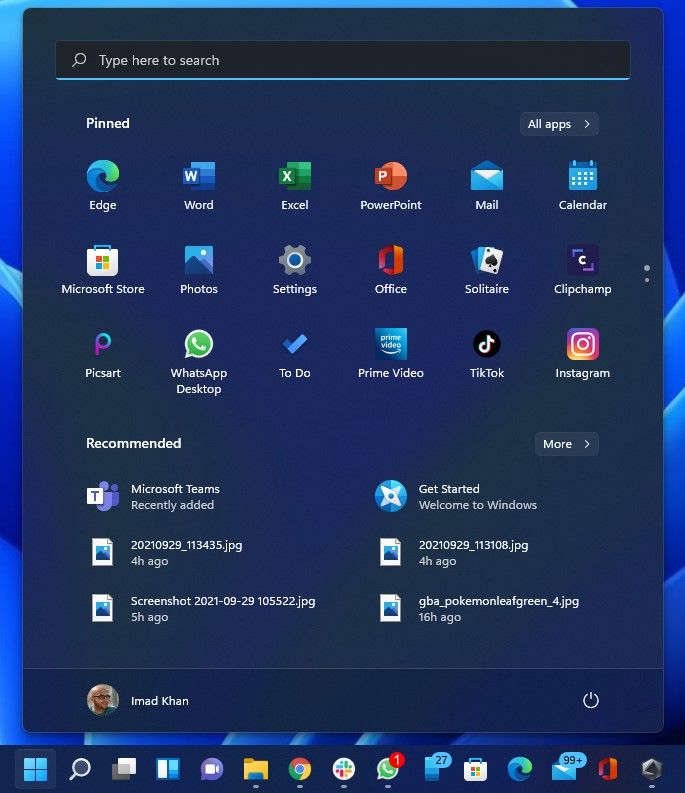
Microsoft’s latest Windows 11 operating system aims to make the current Windows experience finer with its design prettier and more user-friendly interface.
However, regardless of all the improvements and better UI, some of your important software might not work right in the new operating system. And thus downgrading or going back to Windows 10 might be the only way.
Don’t worry if you find yourself in this dilemma since going back to Windows 10 is pretty easy, and takes very little effort.
Step by step guide to downgrade your computer from Windows 11 to Windows 10:
Click on the Start button
Click on Settings
Under System, click on Recovery
Under Recovery Options click on Go Back